color palette
#0b0914
#e5def5
#36f9f6
#faf5ff
#383054
#faf5ff
#0b0914
#ff5b7f
#8cf5b0
#f4ef78
#82aaff
#ff4f9a
#36f9f6
#e5def5
#817698
#ff8ca7
#b3ffd1
#fff7a1
#b2caff
#ff94d2
#9bfffc
#faf5ff
preview
readme
Neon District
A cyberpunk Omarchy theme: near-black violet, electric cyan, hot pink, and pale lavender text. Includes two custom cyberpunk wallpapers.
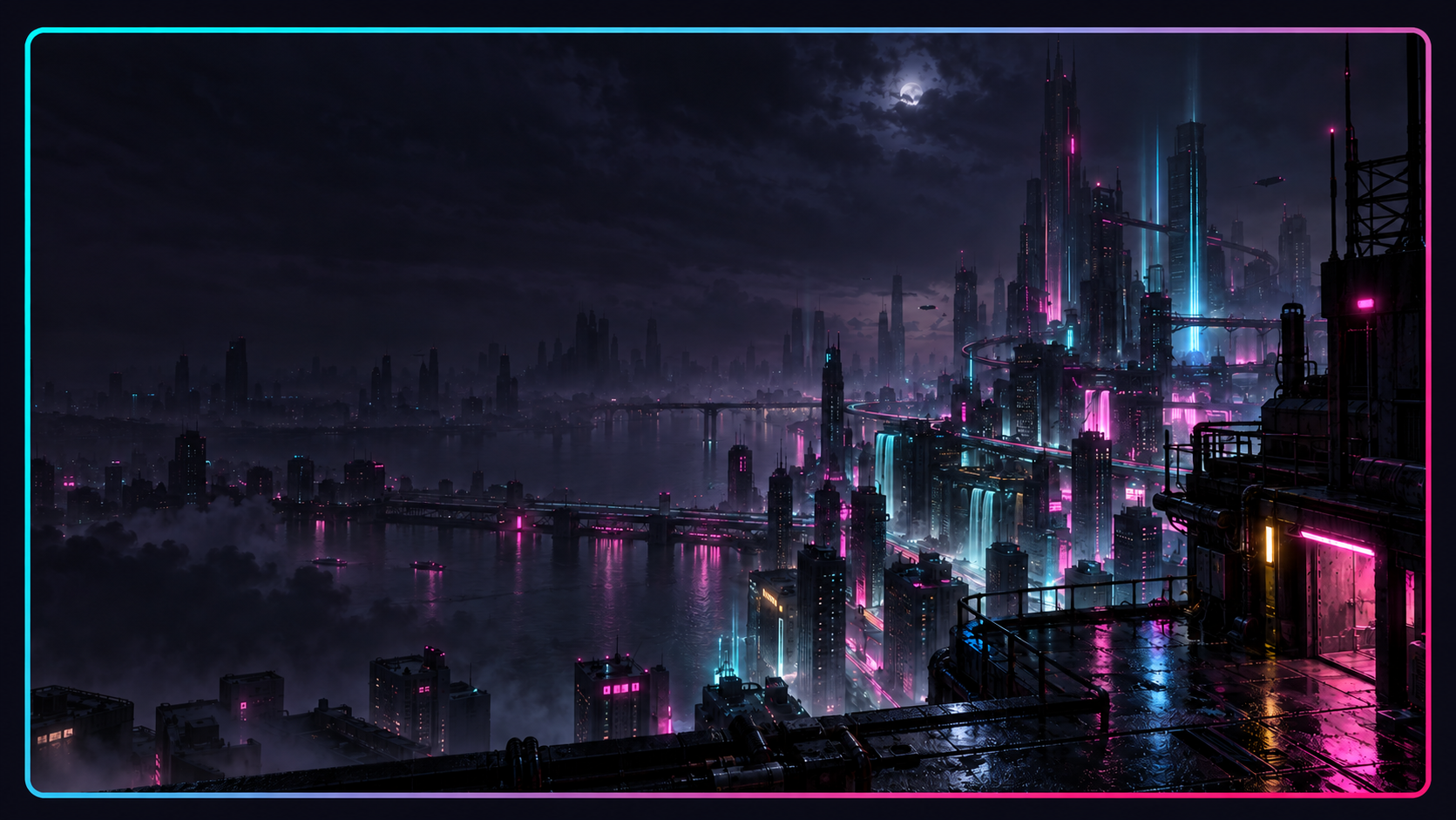
Styled wallpaper preview illustrating the gradient window border. Theme accents: electric cyan #36f9f6, hot pink #ff4f9a, and near-black violet #0b0914.
Install
Requires Python 3 and an Omarchy installation using colors.toml and the Quickshell shell. From a complete checkout:
python3 install.py --dry-run
python3 install.py --apply
The installer backs up an existing theme before changes and installs only theme assets. Optional prompt and window effects remain separate.
See INSTALL.md for verification, staging, and rollback. Coding agents should read AGENTS.md.
Palette
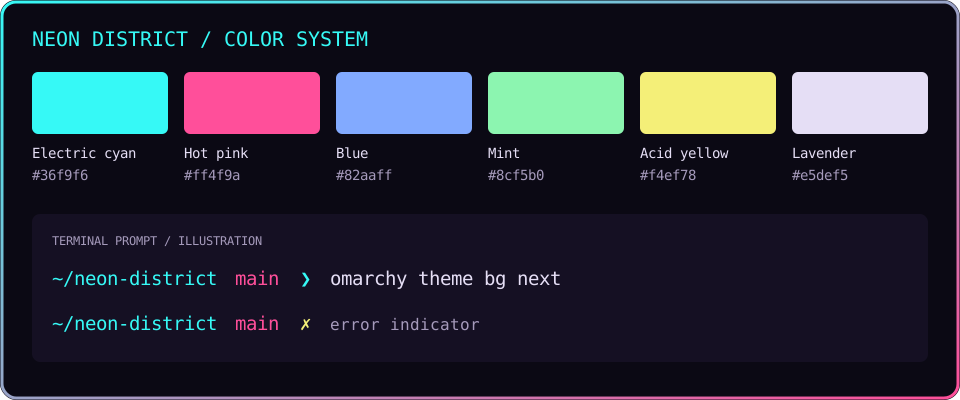
The terminal sample is an illustration, not a desktop screenshot. The swatches use the values in colors.toml.
Desktop widgets — Weather
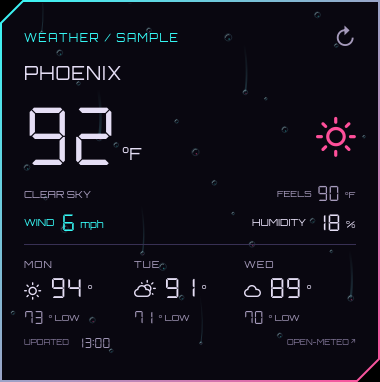
The first desktop widget uses chamfered top-left and bottom-right corners, a cyan-to-pink gradient border, and a dark translucent surface. Angular Orbitron labels and DSEG7 Classic seven-segment numbers give it a digital instrument-panel look. The screenshot above uses labeled sample data.
It shows current conditions, feels-like temperature, wind, humidity, and a three-day forecast. It sits behind application windows, refreshes every 30 minutes, and marks retained readings as stale when an update fails. Click the refresh arrow to retry.
python3 install.py --weather-widget --dry-run
python3 install.py --weather-widget
omarchy-shell shell rescanPlugins
omarchy plugin enable neon-district.weather
Network access defaults to off. To retrieve weather, explicitly allow sending the location coordinates already stored by Omarchy to Open-Meteo by adding "allowNetwork": true to the widget's entry in ~/.config/omarchy/shell.json. Merge these fields into the existing entry; do not replace the rest of the configuration:
{
  "id": "neon-district.weather",
  "allowNetwork": true,
  "unit": "imperial",
  "x": 28,
  "y": 72
}
Both widgets include animated rain on glass: stationary beads, slow falling drops, and faint neon reflections behind the readings. The rain stays inside the chamfered border. Set "rainEnabled": false in a plugin entry to turn it off; the system widget inherits the weather setting unless overridden. Animation uses a small 20 FPS canvas and pauses when hidden.
The widget surface defaults to 82% opacity; "backgroundOpacity": 0.82 in the same plugin entry adjusts the fill independently of the border and text (range 0.1–1.0).
For backdrop blur, copy the optional compositor settings and load them at the end of ~/.config/hypr/hyprland.lua:
cp extras/neon-widgets.lua ~/.config/hypr/neon-widgets.luarequire("hypr.neon-widgets")Then run hyprctl reload and hyprctl configerrors. This enables Hyprland's global blur engine (size 6, two passes) and adds a layer rule for the weather widget. Transparent chamfer corners are excluded; text and borders stay sharp. The global blur settings also affect other surfaces already eligible for blur. Remove the require line and reload to undo. The theme installer does not edit your Hyprland configuration automatically.
If the glass effect is hard to see, try "backgroundOpacity": 0.70. Blur is most visible over detailed wallpaper; the dark sky in the upper-left can look almost solid. Omarchy's open scratchpad also dims the desktop behind it. Close the scratchpad to judge the widget's normal appearance. A configuration check confirms the rule is accepted, but a visual check is still needed to confirm the effect.
unit accepts metric or imperial; when omitted, an en_US locale uses Fahrenheit and other locales use Celsius. Optional monitor selects an output name (for example eDP-1); otherwise the first screen is used. Coordinates are logical pixels from the upper-left. Set your city in Omarchy's existing weather panel. No API key is needed; weather data comes from Open-Meteo's forecast API.
After updating plugin code, use omarchy restart shell if the running shell retains the old version. Disabling and re-enabling a plugin may reset its per-plugin settings; review the entry afterward.
Check live status with omarchy-shell neon-weather status or refresh with omarchy-shell neon-weather refresh. Disable with omarchy plugin disable neon-district.weather. widgets/neon-district.weather/ChamferFrame.qml is the reusable frame for future widgets. WeatherCard.qml is independent of the desktop host, making offline preview/testing possible. WidgetTypography.qml and DigitalReadout.qml provide reusable typography for future widgets. Both fonts are bundled locally with their SIL Open Font License files; no system-wide font change or runtime font download is required. See font sources.
Desktop widgets — System monitor
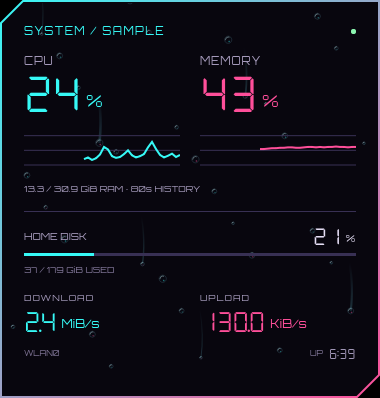
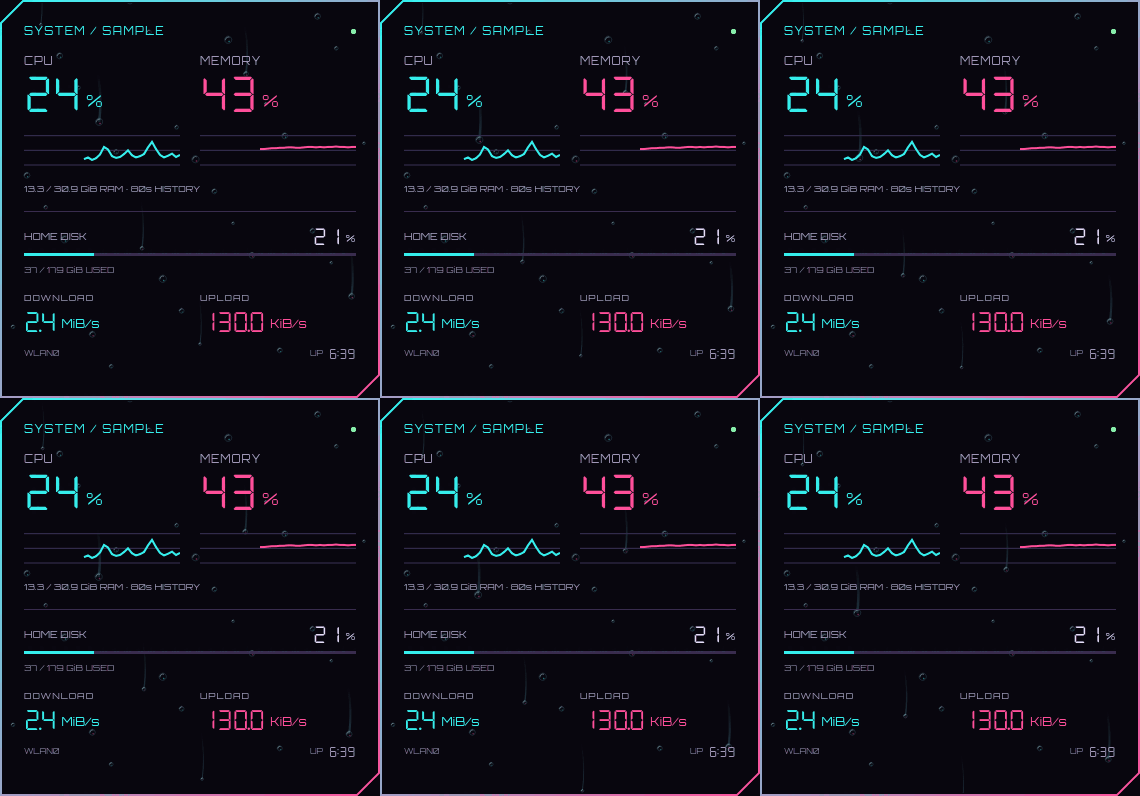
CPU and memory percentages, 80-second activity graphs, home-filesystem disk usage, download/upload speeds, and uptime. All readings come from local Linux counters every two seconds; this widget makes no network requests and needs no extra Python packages.
python3 install.py --system-widget --dry-run
python3 install.py --system-widget
omarchy-shell shell rescanPlugins
omarchy plugin enable neon-district.system
It aligns below the weather widget and inherits its monitor, horizontal position, and background opacity when not configured separately. Without a weather entry, it defaults to the right side. On smaller displays, set explicit coordinates to avoid overlap. To enable blur, use the updated extras/neon-widgets.lua from the weather setup above; its rule covers both widgets.
Optional fields in the neon-district.system plugin entry in ~/.config/omarchy/shell.json:
| Field | Purpose |
|---|---|
x, y | Position in logical pixels; clamped inside the chosen screen |
monitor | Output name, such as eDP-1 |
backgroundOpacity | Fill opacity, from 0.1 to 1.0 |
diskPath | Path on the filesystem to measure; defaults to your home directory |
interface | Network interface override; otherwise follows the default route, with active physical interface fallback |
Network rates are bytes per second, shown as KiB/s or MiB/s. The first rate/CPU sample is blank while counters establish a baseline. Changing interfaces or resetting counters does not produce a false speed spike. RAM usage excludes available/reclaimable memory; disk percentage follows df-style available-space accounting. Uptime is shown as hours:minutes. CPU and memory graphs use a fixed 0–100% scale.
Check it with omarchy-shell neon-system status. Disable with omarchy plugin disable neon-district.system. The frame, fonts, and numeric components are packaged identically to the weather widget so either plugin can be installed independently.
Wallpapers
| Neon District | After Hours |
|---|---|
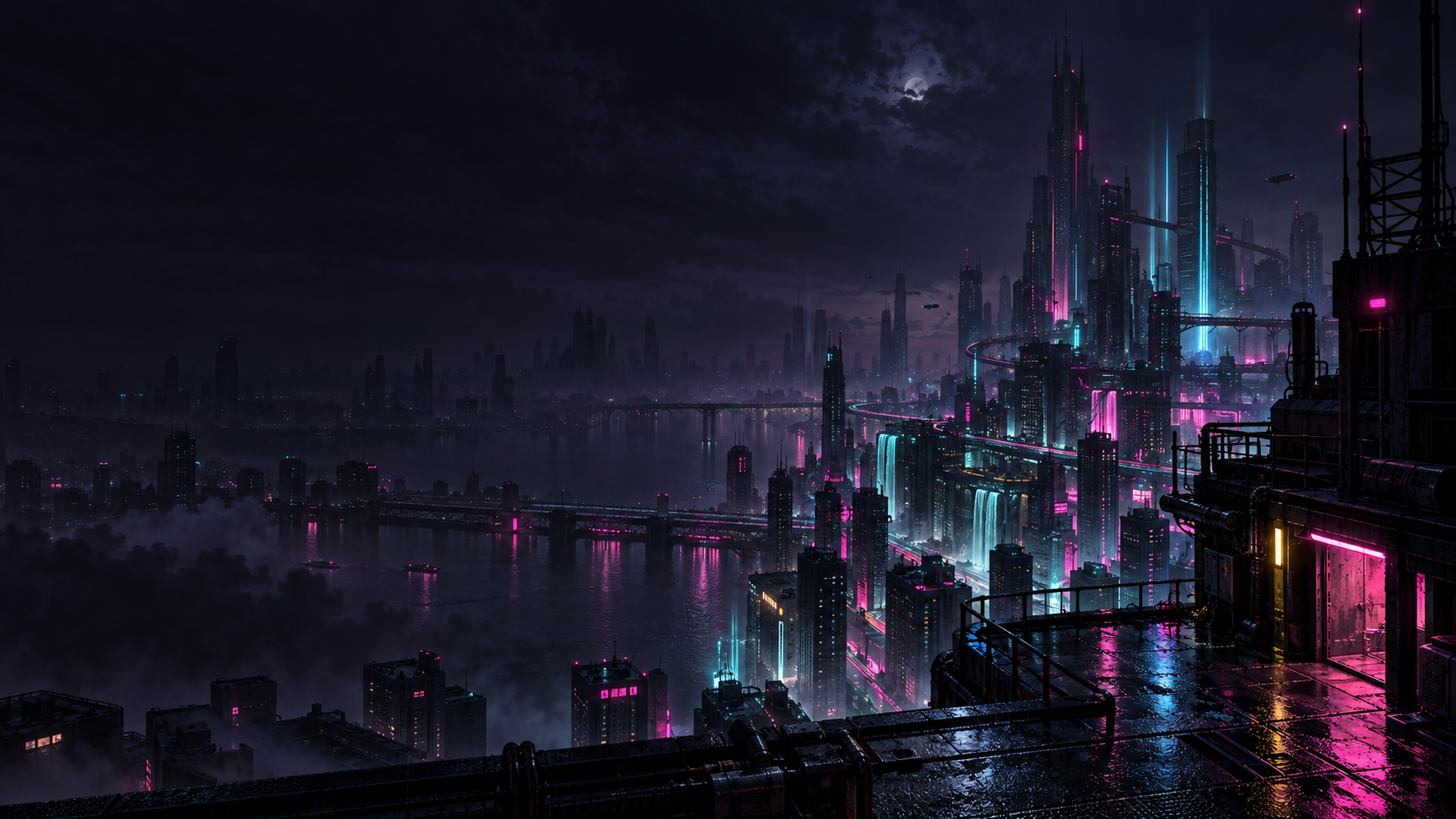 | 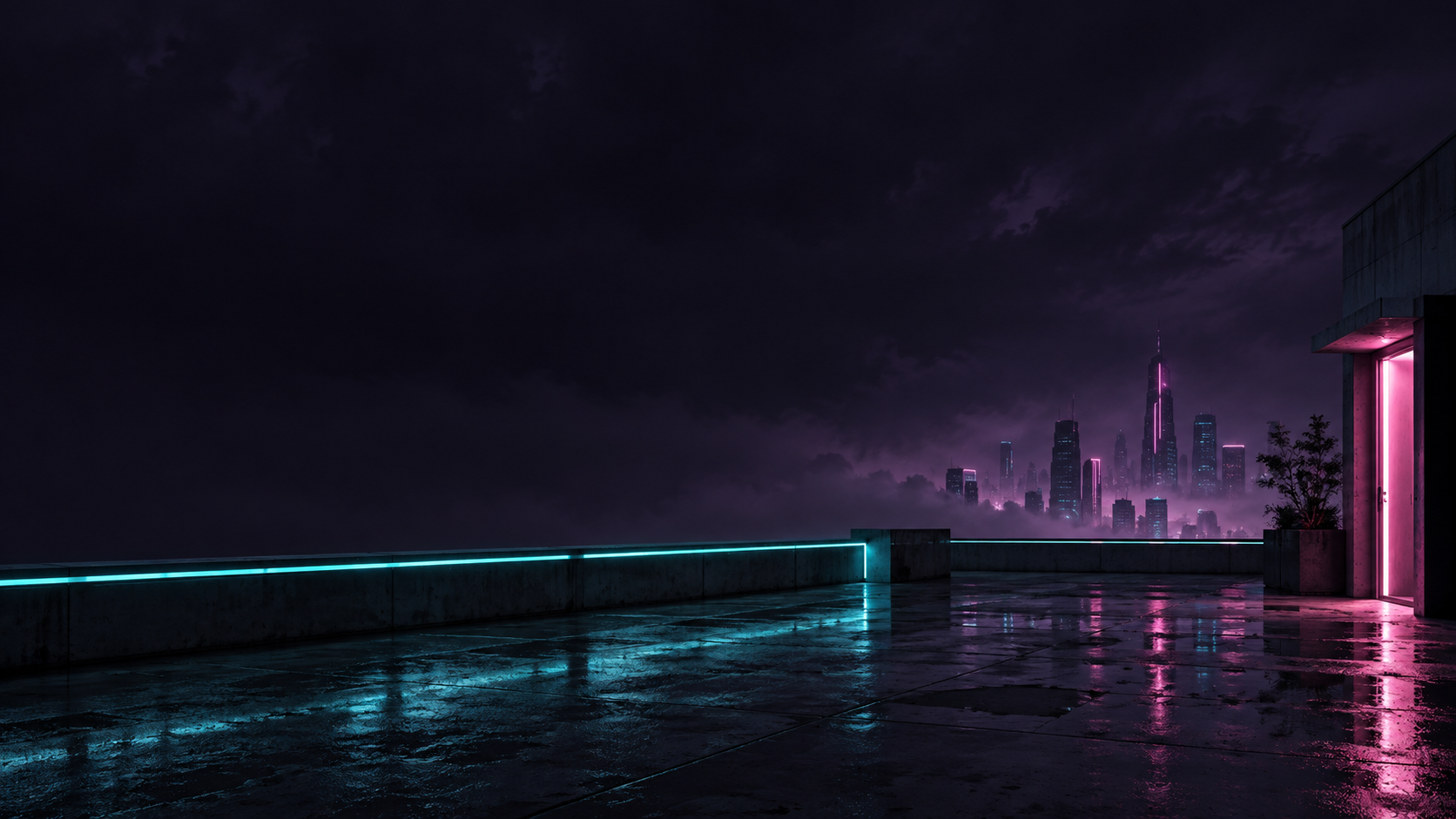 |
| Detailed rainy cityscape | Quieter rooftop with more dark space |
Cycle between them with omarchy theme bg next while Neon District is active.
Lock screen and terminal prompt
The theme includes cyan lock-screen text, a pink password border, and yellow error feedback. With Lock Explorer's Editorial layout, this gives an oversized cyan clock over the city wallpaper. The stock lock screen also uses these colors; layout depends on your lock plugin.
An optional Starship prompt is included at extras/starship.toml: cyan paths, pink Git branches/status, and yellow command-error indicators. It uses terminal ANSI colors, so it adapts when you switch themes. Back up your existing prompt before installing:
cp ~/.config/starship.toml ~/.config/starship.toml.bak.$(date +%s)
cp extras/starship.toml ~/.config/starship.toml
The prompt appears on the next shell prompt redraw. Installing the theme alone does not replace your Starship configuration.
Optional violet shadows and border compatibility
extras/neon-district.lua adds soft violet shadows and makes the theme's cyan/pink borders take precedence over local border colors. If hypr-shiny-border is already loaded, it also recolors that effect while retaining its animation settings. The overrides only apply while Neon District is selected.
Copy the file into your Hyprland config:
cp extras/neon-district.lua ~/.config/hypr/neon-district.luaAdd this at the end of ~/.config/hypr/hyprland.lua, after other appearance plugins:
require("hypr.neon-district")Run hyprctl reload and check hyprctl configerrors. Remove the require line and reload to undo. This is optional because Omarchy does not execute Lua shipped by a Git-installed theme automatically. Shadow settings follow the Hyprland decoration documentation.
Editor colors
Omarchy generates matching Neovim, Helix, and VS Code-family palettes from colors.toml when the theme is applied. No separate editor theme is bundled; editor integration depends on your installed Omarchy setup.
Restore your previous setup
Select your previous theme with omarchy theme set (custom on the original machine). Restore your saved starship.toml backup to undo the optional prompt. Remove require("hypr.neon-district") from your Hyprland configuration and reload to remove the optional appearance override.
Image sources
Wallpapers and the framed preview were generated with the built-in image generation tool. Prompts are saved for the original wallpaper and border preview and After Hours. The palette guide is a vector illustration built from the theme colors.
Rain lock screen (Lock Explorer)
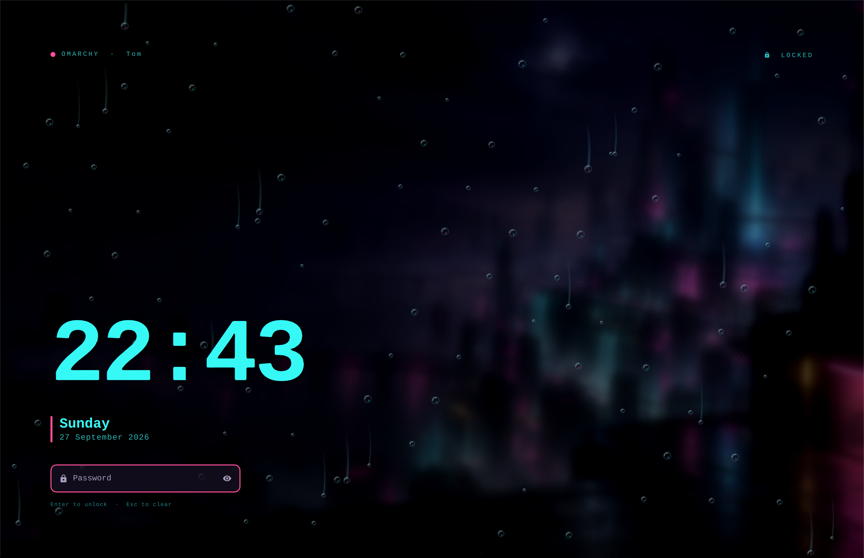
The optional Neon District Rain design adds the widgets' rain-on-glass effect behind the Editorial clock and password controls. It requires Lock Screen Explorer; its authentication code stays in that plugin. The canvas runs at half resolution, stops when the display sleeps, and is omitted from static boot snapshots.
python3 extras/lock-screen/install.py
omarchy-shell lock rescanDesigns
omarchy-shell lock setDesign my-neondistrictrain
Preview without locking: omarchy-shell lock previewDesign my-neondistrictrain.
Press Escape to close. Return to the original with
omarchy-shell lock setDesign editorial. The installer backs up changed files;
the custom design is kept separately from plugin updates. Editorial is adapted
from SirJul1337's MIT-licensed Lock Explorer (license included beside the design).
Qt 6.12 compatibility
Qt 6.12 adds a QtQuick.Color type whose name conflicts with Omarchy's Color
singleton. This design explicitly uses Omarchy.Color and Omarchy.Style through
an aliased qs.Commons import, so it does not depend on which unqualified type
Qt resolves. Re-run the lock-screen installer and rescan designs to update an
existing installation.
A missing top bar or a menu that only darkens the screen can also result from
this conflict in Omarchy itself or other plugins. The theme's colors.toml and
shell.toml do not cause the name collision; updating this design alone does not
repair affected shell or third-party plugin code. Those components need their
own compatible updates or workaround.