color palette
preview
readme
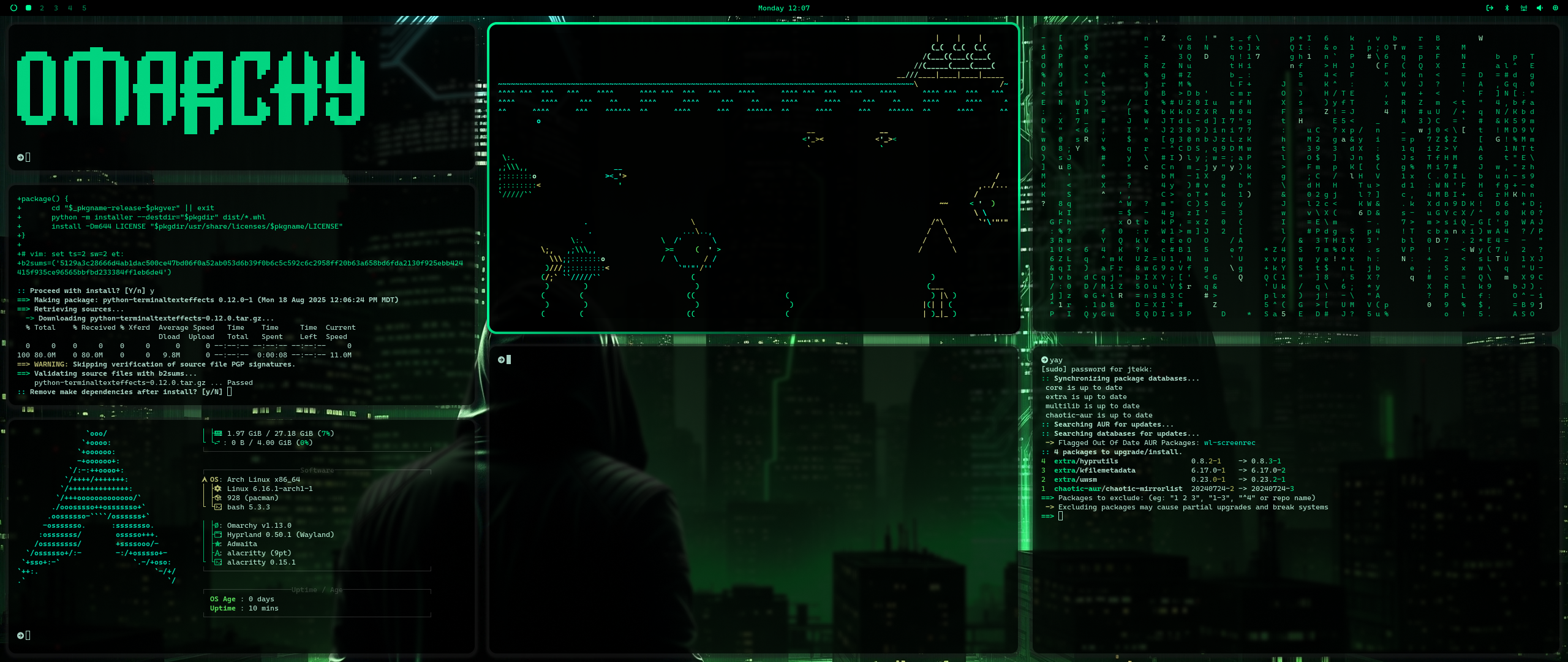
Hakker Green Theme
A cohesive, modern desktop theme for Omarcy Linux systems using Wayland/Hyprland with a focus on aesthetics and productivity, featuring a vibrant green color scheme.
Color Scheme
The hakker-green theme uses a carefully crafted green palette that provides excellent contrast and readability:
- Background:
#000000(Pure black) - Primary Text:
#00ff99(Bright green) - Accents/Borders:
#00cc77(Medium green) - Highlights:
#ccffee(Light green-white) - Inactive Text:
#1a1a1a(Dark gray-black)
Installation
Prerequisites
- Archlinux [https://archlinux.org]
- Omarchy [https://omarchy.org/]
Setup Instructions
omarchy-theme-install https://github.com/joaquinmeza/omarchy-hakker-green-theme
Starship Configuration
To use the hakker-green theme with Starship prompt, set the environment variable:
export STARSHIP_CONFIG="$HOME/.config/omarchy/themes/hakker-green/starship.toml"
Add this line to your shell profile (~/.bashrc, ~/.zshrc, or ~/.config/fish/config.fish) for permanent setup.
For more information about Starship configuration, visit https://starship.rs/.
Configuration Details
Hyprland
- Transparency: Window opacity rules for different applications
- Blur Effects: Background blur with customizable intensity
- Animations: Smooth window transitions and workspace switching
- Gestures: 3-finger workspace swiping
- Gaps: Minimal gaps between windows for clean look
Transparency Levels
- Terminals: 95% opacity
- Code Editors: 90% opacity
- Browsers: 95% opacity
- Media Apps: 80% opacity
Blur Settings
- Size: 5px blur
- Passes: 1 pass for performance
- Optimizations: Enabled for better performance
Customization
Adding New Applications
To add transparency to new applications, add to hyprland.conf:
windowrulev2 = opacity 0.90 0.90,class:^(your-app)$
Modifying Colors
All colors are defined in their respective configuration files:
- waybar.css: Status bar colors
- wofi.css: Launcher colors
- alacritty.toml: Terminal colors
- kitty-theme.conf: Kitty terminal colors
- btop.theme: System monitor colors
- neovim.lua: Editor colors
- starship.toml: Shell prompt colors
Adjusting Transparency
Modify the opacity values in hyprland.conf:
# More transparent (lower values)
windowrulev2 = opacity 0.80 0.80,class:^(app)$

# Less transparent (higher values)
windowrulev2 = opacity 0.95 0.95,class:^(app)$
Troubleshooting
Common Issues
-
Blur not working:
- Ensure your GPU supports hardware acceleration
- Check if
new_optimizations = trueis set
-
Transparency not applying:
- Verify the application class name is correct
- Restart Hyprland after configuration changes
-
Performance issues:
- Reduce blur size or passes
- Disable animations if needed
- Check GPU drivers
-
Starship not loading:
- Verify the
STARSHIP_CONFIGenvironment variable is set correctly - Check that the starship.toml file exists in the specified path
- Restart your terminal after setting the environment variable
- Verify the
Performance Tips
- Use
disable_direct_scanout = truefor better transparency - Adjust blur settings based on your hardware
- Monitor system resources with
btop
File Structure
omarchy-theme-hakker-green/
├── hyprland.conf            # Window manager configuration
├── waybar.css               # Status bar styling
├── wofi.css                 # Application launcher styling
├── hyprlock.conf            # Screen locker configuration
├── mako.ini                 # Notification daemon settings
├── alacritty.toml           # Terminal emulator colors
├── kitty-hakker-theme.conf  # Kitty terminal colors
├── neovim.lua               # Text editor colorscheme
├── starship.toml            # Shell prompt configuration
├── btop.theme               # System monitor theme
└── README.md                # This file
Acknowledgments
- Inspired by modern desktop aesthetics
- Built for productivity and visual appeal
- Designed for Omarchy ecosystem but can be used in Wayland/Hyprland ecosystem
- Starship prompt integration for enhanced shell experience
Disclaimer
The images were created in Gemini. The files were modified, with prompt instructions, utilizing claude-sonnet
Bonus
I've added both a kitty and starship files to go with these themes. By default, these 2 do not come with omarchy
 Enjoy your hakker-green themed desktop!